CDN Log Analysis: Understanding Traffic and Troubleshooting Anomalies from Access Logs
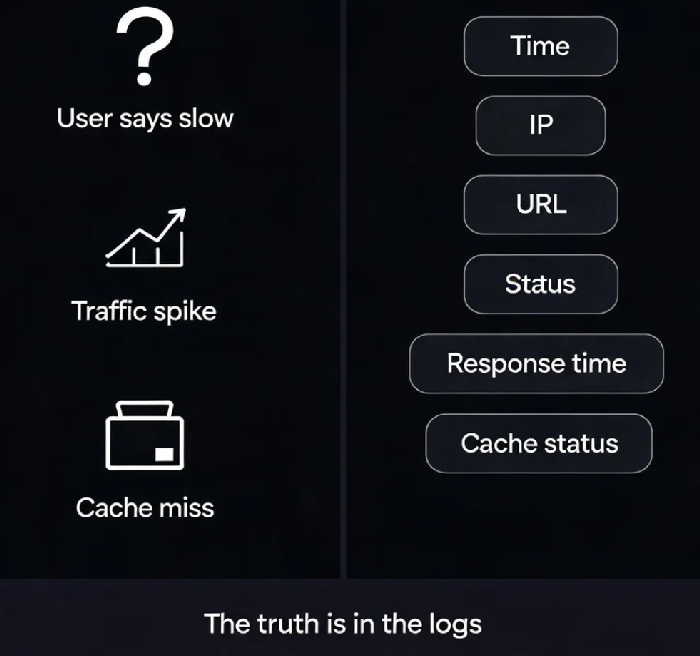
Last year, a client's users complained: "Images are loading so slowly." The ops team checked the CDN dashboard – everything looked normal. No alerts, no anomalies.
But the users kept complaining.
We pulled the CDN access logs. A specific edge node had consistently high origin fetch latency. Other nodes were fine. Further investigation traced it back to a network fluctuation at the origin's egress in that region. The CDN dashboard – showing global averages – had completely missed it.
This is the most common challenge in CDN operations: the dashboard tells you "everything is fine," but users tell you "it's slow." Dashboards show averages; logs show the details.
01 What's in a CDN Access Log?
A CDN access log records every user request in full detail. A single log entry typically includes a dozen or more critical fields:
Timestamp: when the request happened
Client IP: who made the request
Request URL: which resource was requested
Status code: HTTP status (200, 404, 502, etc.)
Response size: how many bytes were returned
Response time: total duration from request to completion
Cache hit/miss status: HIT or MISS
Referer: where the user came from
User-Agent: browser or device used
Some cloud providers now offer real-time logs with over 20 fields, including a unique request UUID that allows you to trace a single request's full path from edge to origin, making correlation across multiple services and log types much easier .
02 How to Investigate "Users Say It's Slow"
Users complain about slowness, but the CDN dashboard shows no issues. This is where you need to dig into the logs at the user level.
Check individual request latency: Filter logs by client IP and time range. Look at the response time for each request. If only specific resources are slow, it's likely a cache miss. If all requests are slow, there may be a network issue between the user and the CDN edge.
Check latency distribution by edge node: Aggregate average response time by edge node (server_ip field). Identify nodes with unusually high latency.
That client found the issue by aggregating logs by edge node – a few specific nodes had abnormally high origin latency. After tracing it back to the origin network issue, they adjusted the origin-to-CDN routing, and user complaints stopped.
03 How to Investigate "Traffic Suddenly Spiked"
A traffic spike could be a good thing – a viral event – or a bad thing – an attack.
Check popular URLs: Group by uri and sum request counts and bandwidth. If the spike is on your homepage or campaign pages, it's likely real user traffic. If it's on a tiny, obscure file and comes from a small set of IPs with abnormal User-Agent strings, it's likely malicious scraping or an attack.
Check the source distribution: Group by client_ip to see if traffic is coming from a small set of IPs. Check refer_domain to see where the traffic originated – if it's from external sites like e-commerce platforms, your images might be hotlinked.
Check status codes: A large number of 429 (rate limited), 403 (forbidden), or 514 (frequency control) responses may indicate access restrictions are being triggered. Large numbers of 500/502/504 indicate issues with the origin or the CDN itself .
04 How to Investigate "Cache Isn't Working"
If the cache isn't working, everything goes back to the origin, and your costs double.
Check the hit rate: Use the hit_info field to count HIT vs MISS. If the hit rate is below 80%, start by identifying which resources have the lowest hit rates.
Check why resources are missing: For frequently MISSed resources, check the origin's Cache-Control headers. If the origin returns no-cache, no-store, or max-age=0, the CDN will not cache. You can see this behavior in the logs – if status code 200 responses are unusually small for a resource type, it may be because the origin is setting no-cache .
Check URL parameter issues: If URLs contain timestamp or random parameters (?t=123456), the CDN treats each version as a different file, killing the hit rate. Look at the uri_param field – if you see the same resource repeated with many different parameters, this is likely the problem.
05 Tools for Log Analysis
Cloud-native solutions: Services like Tencent Cloud CLS, Alibaba Cloud SLS, and Huawei Cloud LTS support real-time delivery of CDN logs and provide out-of-the-box analysis dashboards (basic metrics, error analysis, popular resources, user analysis). Log latency is less than 3 minutes, much faster than the 24-hour turnaround of traditional offline log processing .
Open-source options: You can download offline logs and quickly analyze with command-line tools. For example, to get a status code distribution: awk '{print $status_code_position}' access.log | sort | uniq -c | sort -nr. Or import them into ELK or Splunk for visualisation .
That client later configured real-time log delivery with pre-built dashboards. When users complained again, they were able to pinpoint the issue in minutes .
The Bottom Line
CDN dashboards show averages. Logs show the details. When users complain about slow performance, when traffic spikes, when cache isn't working – the answers are in the access logs. Cloud providers' real-time log features can reduce log latency to under three minutes, with pre-built dashboards that can be used out of the box.
Next time a user says it's "slow," don't just stare at the monitoring dashboard. Go check the logs. The answer is often there.