Cloud Server Snapshot Strategy: Good Backups Keep Your Data Safe
Last year, a client's operator accidentally deleted a critical table from their core database. The team panicked for half an hour — then remembered they had daily automated snapshots. They rolled back to the point before the deletion. Ten minutes later, the database was back online.
"If we hadn't had snapshots configured," they told me later, "that day would have made the news."
Data loss happens in many ways: accidental deletion, ransomware, system crashes, hardware failure. Snapshots are the last line of defence. But many people either don't configure them, or configure them poorly. In this article, I want to show you a practical way to build a snapshot strategy that actually protects your data.
01 What Is a Snapshot, and How Is It Different from a Backup?
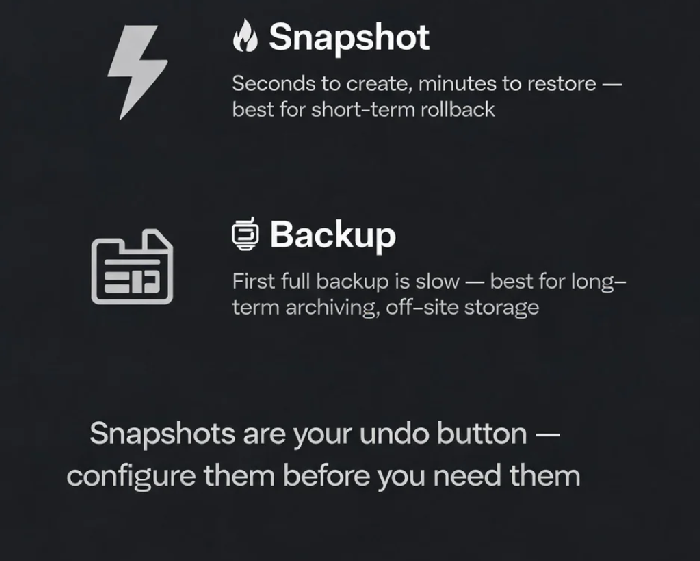
A snapshot is a point-in-time copy of a cloud disk's data . Think of it as taking a "state photograph" of your disk. Snapshots are almost instant to create, regardless of disk size. They are stored in a different storage cluster within the same region .
A backup (in the traditional sense) is copying data to another storage medium for long-term retention and disaster recovery . Snapshots are more like an "undo button" — they allow fast rollback to a specific point in time.
The key differences:
| Feature | Snapshots | Traditional Backups |
|---|---|---|
| Creation speed | Seconds | First full backup is slow |
| Restoration speed | Minutes | Can take hours |
| Storage type | Incremental (change-only) | First full, then incremental |
| Best for | Short-term recovery, fast rollback | Long-term archiving, disaster recovery |
| Off-site | Often same region | Can be stored in separate regions |
As one cloud provider puts it: "Backup storage for long-term data backup; snapshot for temporary data recovery" . They serve different purposes, and the best strategy uses both.
02 How to Configure a Snapshot Policy
Most cloud providers offer automated snapshot policies that run on a schedule. You configure it once, and it runs automatically from then on .
Three‑step configuration (using Tencent Cloud as an example) :
Create the policy: Go to the snapshot console → Scheduled Snapshot Policy → New. Set the execution time (recommended: off‑peak hours like 2 AM), repeat days (daily or weekly), and retention period (recommended: 7‑30 days).
Associate cloud disks: This is the step most people miss. The policy does nothing until you associate it with specific disks. Only associated disks will have automated snapshots created .
Verify: After setup, check the "Snapshot List" page to confirm snapshots are being created .
| Data type | Frequency | Retention |
|---|---|---|
| System disk | Weekly | 2‑3 weeks |
| Data disk | Daily | At least 7 days |
| Core database | Daily | 30 days (compliance‑critical) |
| Dev/test environment | Weekly | 7 days |
A common pitfall to avoid: many people keep too many snapshots, driving up storage costs. Snapshots are incremental, but the accumulated costs can be significant. Cloud providers offer free quotas per region, but beyond that, you pay. The goal is to balance data protection needs with cost — not too few to be useful, not so many that you're wasting money .
03 Two Restoration Methods
You have two ways to restore from a snapshot :
Direct rollback: In the cloud console, find the target disk, select a snapshot, and confirm the rollback. Takes minutes. Important: this overwrites current data — confirm before proceeding.
Create a new disk from the snapshot: Create a new cloud disk from the snapshot, attach it to an instance, and verify the data first. Once you confirm it's correct, you can switch over. This is the safer option for business‑critical data, as it doesn't affect the existing disk. If you're dealing with critical data, I'd strongly recommend using the second option to validate before committing to a rollback .
04 Common Pitfalls
Pitfall 1: Configured the policy but never checked
Periodically verify that snapshots are being created successfully.
Ensure you have enough storage space in the free quota.
Pitfall 2: Keeping too many snapshots
More snapshots = higher costs. Storage is incremental, but it still adds up over time.
Keep a reasonable retention window: too few snapshots may not cover the restore point you need, too many costs too much.
Pitfall 3: Never testing a restore
A snapshot you've never restored doesn't prove anything. I recommend doing a restore drill at least once a quarter .
The Bottom Line
That client later standardised the snapshot process: "For every new server, we set up automated snapshots in the first week."
Spending half an hour configuring a snapshot policy can save days or even weeks of data recovery time. That's about as close as you get to a free lunch in operations. Are your servers' snapshots configured? Go check your console today — before you need them.