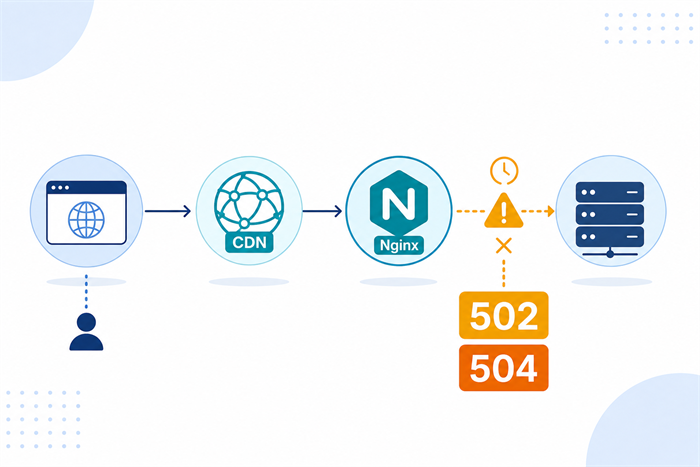
A 502 or 504 page is not a diagnosis by itself. It tells you that a gateway or proxy failed while talking to another system, but the failing hop may be the CDN, load balancer, Nginx, application server, database, or an external API. The fastest way to recover is to identify that hop before changing timeouts.
This guide provides a practical troubleshooting path for websites and APIs that use a CDN in front of Nginx or another reverse proxy. The examples use Linux, Nginx, curl, and Amazon CloudFront terminology, but the method applies to most proxy-based delivery stacks.
Start by measuring the impact
Before editing configuration, determine whether the error affects every request or only a subset. Record the first known failure time, affected hostnames, paths, regions, request methods, and whether cached objects still work. A site that serves cached CSS and images but fails on login or checkout is a different incident from an origin that is completely unreachable.
All users and all paths fail: check DNS, origin reachability, firewall rules, listener ports, TLS, and the health of the reverse proxy first.
Only uncached or dynamic paths fail: focus on CDN-to-origin connectivity, Nginx upstreams, application workers, database calls, and external dependencies.
Only one region or network fails: compare CDN points of presence, routing, firewall allowlists, and regional origin health.
Only POST, upload, or long-running requests fail: check request-body limits, method-specific retry behavior, application execution time, and each layer's timeout.
Do not rely on a browser refresh alone. Capture the status code, response headers, timestamps, and a request or trace ID if one is available. Those details let you align CDN, proxy, and application logs later.
What 502 and 504 usually mean
502 Bad Gateway generally means a gateway received an invalid response from its upstream. In an Nginx stack, common causes include a refused connection, a closed upstream socket, a malformed response, an unavailable Unix socket, a failed TLS handshake to an HTTPS upstream, or no usable server in the upstream group.
504 Gateway Timeout means the gateway did not receive the required upstream response within its allowed time. The upstream may be overloaded, blocked, deadlocked, waiting on a database, or calling a slow third-party service. A firewall that silently drops packets can also present as a timeout.
The same status can be generated at different layers. A CDN may create a 504 because it could not reach the origin in time, while Nginx may create another 504 because the application did not respond in time. The error page design is not sufficient proof of where the failure originated.
Test the public path and the origin separately
Run tests from a network that represents affected users, then repeat them from a trusted network near the origin. Replace the example domains and IP address with your own values.
curl -I https://www.example.com/
curl -I https://origin.example.com/health
curl -vk --resolve www.example.com:443:203.0.113.10 https://www.example.com/health
The first command tests the normal public path through the CDN. The second tests a dedicated origin hostname when one exists. The third sends the production hostname and TLS SNI directly to the selected origin IP, bypassing public DNS and the CDN. Use a harmless health endpoint and do not expose an origin hostname or IP that should remain private.
Interpret the comparison carefully:
If both the CDN path and direct-origin test fail, the problem is probably at the origin, reverse proxy, application, or a dependency.
If the direct origin is healthy but the CDN path fails, inspect the CDN origin hostname, port, protocol policy, Host header, SNI, firewall allowlist, and timeout settings.
If a health endpoint works but a business endpoint fails, the process may be alive while its database, cache, queue, storage, or downstream API is unhealthy.
If HEAD succeeds but GET or POST fails, test the real method with a safe request because applications and CDNs can handle methods differently.
Align CDN, Nginx, and application logs
Use a narrow time window around one failed request. Start with the viewer request in the CDN log, find the matching origin request, then follow it through Nginx and the application. A consistent request ID is ideal. If the stack does not yet propagate one, add a request ID at the edge or proxy and pass it to upstream services.
For Nginx, include fields that reveal the selected upstream and timing. Useful variables include $request_id, $request_time, $upstream_addr, $upstream_connect_time, $upstream_header_time, $upstream_response_time, and $upstream_status. When retries or multiple upstreams are involved, some variables can contain multiple values, so keep the raw log entry.
The Nginx error log often provides the quickest clue. Messages such as connect() failed (111: Connection refused), upstream timed out, no live upstreams, upstream prematurely closed connection, or certificate verification failures point to different remedies. Do not treat all of them as a reason to raise proxy_read_timeout.
Check Nginx upstream health and capacity
Confirm that the configured upstream address, port, and socket are correct and that the service is listening. Then examine process health, worker saturation, file descriptors, connection queues, CPU, memory pressure, disk latency, and recent deploys.
sudo ss -lntp
sudo systemctl status nginx
sudo systemctl status your-app-service
sudo journalctl -u nginx --since "15 minutes ago"
sudo journalctl -u your-app-service --since "15 minutes ago"
sudo nginx -T
nginx -T prints the active configuration and can expose an unexpected include or location override. It may contain hostnames, certificate paths, or other sensitive configuration, so review it locally and redact secrets before sharing the output.
If the upstream uses a Unix socket, verify that the socket exists and that the Nginx worker user has permission to access it. If it uses HTTPS, test the upstream certificate name and SNI. If the service is containerized, confirm the container network, published port, service discovery record, and health-check target rather than assuming that a running container is reachable.
Understand Nginx timeout settings before changing them
These directives control different phases of a proxied request:
proxy_connect_timeout 5s;
proxy_send_timeout 30s;
proxy_read_timeout 60s;
proxy_connect_timeoutlimits the time allowed to establish a connection to the upstream.proxy_send_timeoutlimits the interval while Nginx is sending the request to the upstream.proxy_read_timeoutlimits the interval between successive read operations from the upstream; it is not simply a limit for the entire response transfer.
These values are examples, not universal recommendations. Set them from measured application behavior and the user-facing latency budget. A five-second API and a long report export should not necessarily share the same location block or timeout policy.
Blindly increasing every timeout to 300 seconds can hide a slow query or worker shortage while keeping connections and memory occupied for longer. It may turn visible 504 errors into a larger capacity incident. Fix the slow or blocked work first, then increase a timeout only when the operation is intentionally long-running and the surrounding capacity supports it.
Before changing production configuration, save a copy or use version control. Validate the new configuration and reload safely:
sudo nginx -t
sudo systemctl reload nginx
If validation fails, do not reload. Keep a rollback path and make one controlled change at a time so that the result is attributable.
Investigate the application and its dependencies
A healthy Nginx process does not prove that the application is healthy. Check worker counts, queues, event-loop lag, thread pools, connection pools, garbage collection, and per-route latency. Compare normal and high-percentile latency rather than using only averages.
Frequent underlying causes include:
slow or locked database queries;
an exhausted database, Redis, or HTTP connection pool;
application workers consumed by long requests;
a downstream API with no strict client timeout;
DNS resolution delays inside a container or private network;
storage latency, full disks, or heavy log writes;
a deployment that changed startup time, routing, or health checks.
Give each outbound call a timeout that is shorter than the remaining request budget. Add circuit breakers or bounded retries where appropriate. Retrying a slow dependency at every layer can multiply traffic and make an outage worse, especially for non-idempotent requests.
Verify the CDN-to-origin configuration
If the origin works directly, compare the CDN's actual origin request with the request that succeeded. Verify the origin domain, protocol, port, TLS certificate name, Host header, forwarded headers, cookies, query strings, and path rewriting. An origin may reject the CDN request even though a manual request to a different hostname succeeds.
Also confirm that network controls allow traffic from the CDN. Security groups, host firewalls, rate limits, bot rules, and origin access policies can block or delay edge requests. Prefer an authenticated private-origin design or an automated, documented allowlist process instead of manually maintaining stale IP ranges.
For CloudFront, AWS recommends checking origin accessibility and application latency before increasing the origin response timeout. A higher timeout can be reasonable for a known long response, but it should follow performance investigation rather than replace it. Review error caching as well: after the origin recovers, a cached error can make the incident appear to continue until its configured TTL expires.
Recover in a controlled order
Choose the smallest action that restores service without destroying evidence:
Stop or roll back a clearly faulty deployment.
Restore a failed dependency or remove an unhealthy upstream from rotation.
Scale application workers or origin capacity if metrics show saturation.
Temporarily disable an optional slow feature or serve a reduced response.
Adjust a timeout only when the operation is valid and its expected duration is understood.
Change CDN error caching or invalidate an error object only when cached errors are confirmed.
A restart can restore service, but it can also erase useful process state and create a brief outage. Capture logs, metrics, queue depth, and connection information first when the incident allows it. Avoid repeated restarts without a hypothesis.
Verify recovery from every relevant layer
After the change, repeat the public and direct-origin tests. Verify the real affected paths and methods, not only the homepage. Check that latency has returned to a normal range, error rates remain low under expected traffic, upstream queues are draining, and no new connection or memory pressure is building.
Continue monitoring beyond the first successful request. A service can look healthy immediately after a restart and fail again as pools, queues, or caches fill. If the CDN cached an error response, confirm that users receive the recovered origin response after the error TTL or an intentional invalidation.
Prevent the next 502/504 incident
Use health checks that cover critical dependencies without turning every probe into an expensive full transaction.
Record request IDs and upstream timing fields consistently across the CDN, proxy, application, and dependencies.
Alert on error rate, tail latency, worker saturation, queue depth, connection-pool usage, and origin reachability.
Define a timeout budget from the client to the deepest dependency so inner operations fail before outer gateways do.
Use bounded retries with jitter and retry only safe operations.
Test CDN and origin configuration changes with staged traffic and keep a documented rollback.
Keep a lightweight diagnostic endpoint that can distinguish process health from dependency health.
Conclusion
When a website repeatedly returns 502 or 504, begin with path isolation, not a global timeout increase. Compare the CDN path with the direct origin, align one request across logs, identify the failing hop, and apply the smallest safe fix. Then verify recovery under real traffic and improve observability so the next incident points to a component instead of presenting only a generic gateway page.
References
Sources reviewed on September 14, 2026.